Once the above setup is complete, make the appropriate roster
adjustments to your team.
You then create a default manager profile. From DMB's main menu you select (O)rganize -> (R)oster -> {select your team} -> (M)grProfile. Minimum requirements for the profile are two lineups, one against left handed pitchers and one against right handers, a 5 man starting rotation and a bullpen usage guideline.
NOTE: The DMB requires that your default lineup versus LHP be saved in slot #1 of the profile and your lineup versus RHP be saved in slot #2. Failure to do this will cause the CM to select the wrong lineup.
You can get as detailed as you like. If you don't plan on using the computer manager and don't care to invest a lot of time creating the profile, you can request the CM to prepare a profile for you. That is accomplished by selecting (A)uto -> (F)ull from the Manager Profile menu.
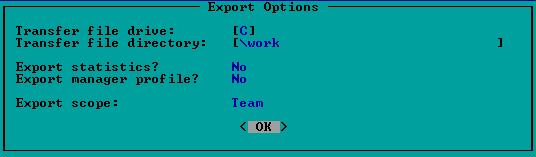
Once the profile is complete to your satisfaction, it must be exported and transmitted to the league office. From DMB's main menu you select (T)ransfer -> (S)tats/MP -> (E)xport. You are presented with the window below.
The rest of the default instructions can be accomplished using a simple text editor or word processor. You must supply a list of you final roster and all the cuts/deletions you made to get the roster to its final state, a full 162 game pitching rotation, and any petitions you have to rate players out of position.
We recommend letting the game save you a little time and produce the final team roster for you. That way, you significantly reduce the amount of typing (an chance for errors). To put a copy of your team's roster into a file, go to the DMB main menu and select (R)eports -> (T)eam, then highlight [Roster] and select (F)ile. The program will ask you to enter a file name. By default, the roster will be placed into your NARC Player directory. You should change this to be the Working directory. The file name can be anything you like. To be simple, we recommend using your team's two letter abbreviation and appending ".TXT". Using our example setup above and the Portland Quakes team, the full file designation is C:\WORK\PQ.TXT.
After pressing the "Enter" key, select (T)eam and then highlight your team. You roster is now in your Working directory along with your default manager profile. The DMB game will not be of much help for creating the remaining parts of your default instructions. You can exit DMB now, minimize the window, or leave it up in the background.
The 162 game rotation has proven to be a bit challenging in the past. There is a rotation assistant available from the web site that will help detect rest errors, especially around days off and double headers. The assistant is an Excel spreadsheet. Using the assistant will reduce the amount of work required by the league office and will allow the information to be posted more rapidly. If you have Excel, we would greatly appreciate you using the rotation assistant.
That leaves your cuts and position petitions. Both your roster and cuts are needed to resolve any problems that might occur from importing your manager profile. Type these items into your editor/word processor and save the file to your Working directory as a TEXT file. Use any file name you like. PQ-MISC.TXT would be a good name for the previously mentioned Portland Quakes. Use your favorite ZIP program to package your default instructions. The ZIP archive file should contain all of the files discussed in this section. Review the packing list for a detailed example.
A good name for your ZIP archive is xx-DEF where the xx is replaced by your team's two character abbreviation. Once the ZIP file is created and contains all the necessary information, you need to go to the Manager's page on the NARC web site and select the link to post your default instructions. If your browser does not support the upload scripts (test your browser), then you will have to e-mail your ZIP file to the league office.
An important suggestion at this point is to keep your Working directory free of old files. Since all the files are in your ZIP archive, they can be deleted. Once you have confirmation that the ZIP archive has been received and is readable, you can delete that file as well.