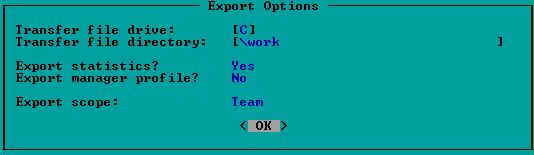
The first step is to export team statistics for both your team and your opponent. This requires two exports. From the DMB main menu select (T)ransfer -> (S)tats/MP -> (E)xport. (This is similar to what you did to export your manager profile.)
Repeat the process for your opponent by selecting (E)xport again, choose "OK", and then select your opponent's team. After each export is complete, make sure you get a message to confirm the export was free from any kind of error.
You are now done with the DMB portion of this process. We have a utility called NARCZIP that you can use to complete the rest of the process as described below. To take advantage of this utility, you must setup and configure it properly. The configuration link will also give you a brief explanation on usage. Continue reading here if you wish to understand what the utility program is doing.
The next step is to move (copy and delete) the "GMxxxxyy" files from the NARC Player directory to your Work directory. This can be done with the DOS "Move" command or through Windows by dragging and dropping the files between folders.
Use your favorite ZIP program to package all of the export files (.EXP file extension) and game report files (GMxxxxyy). The ZIP archive file will contain a different number of files depending on how many games are in the series. Review the packing list on the web site for an example of a complete file list.
A good name for your ZIP archive is xx@yy-R where the xx is replaced by your team's two character abbreviation and the yy is your opponent's abbreviation. Once the ZIP file is created and contains all the necessary information, you need to go to the Manager's page on the NARC web site and select the link to post series results. If your browser does not support the upload scripts(test your browser), then you will have to e-mail your ZIP file to the league office.